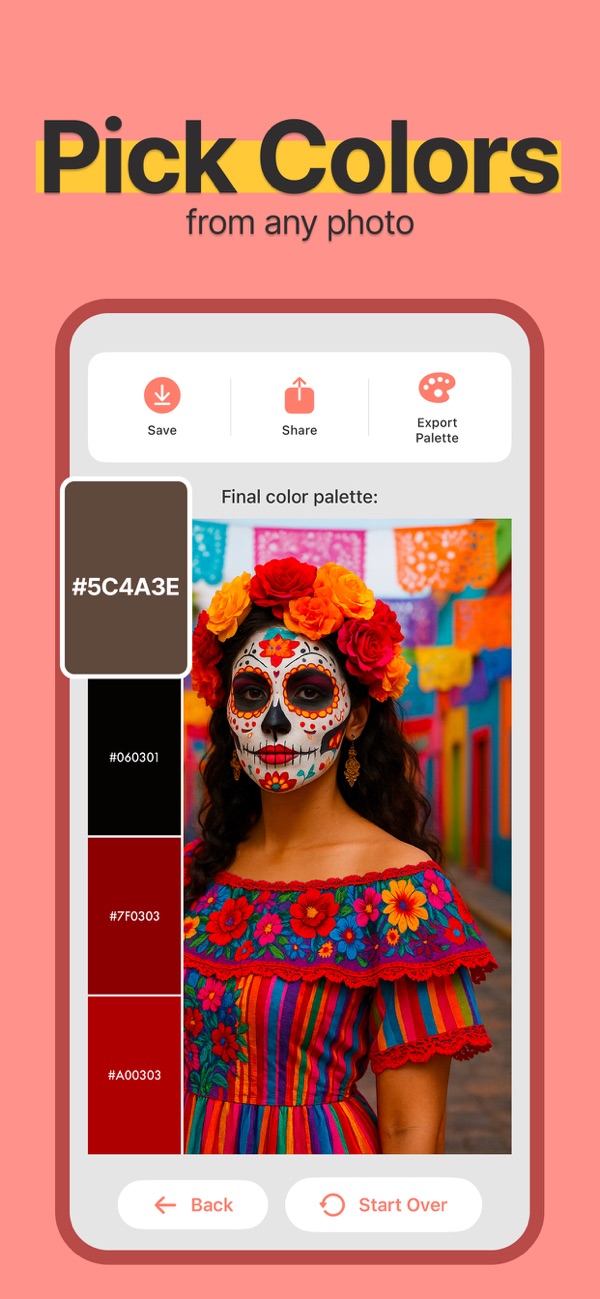
How to find a HEX color in a photo on iPhone
Extract a photo palette, copy a HEX code and check it in your design. Understand why lighting and compression change the color you see.
Quick answer
Open a photo in Color Viewfinder, inspect the extracted palette and copy the HEX value for the color you want to reuse. The code describes a digital color from the image; it is not a measurement of the original paint, fabric or printed object.
Step by step
Choose a useful source photo
Use an original image where possible. Avoid tinted filters, strong reflections and screenshots of an already compressed image. If the goal is a wall or fabric color, photograph it in even light and keep a physical sample for comparison.
Extract and compare the palette
Pick the photo or a camera snapshot in Color Viewfinder. Review the extracted colors and try a different palette layout if that makes the main and accent colors easier to compare.
Copy the HEX value
Inspect the chosen color and copy its HEX code. A six-digit code such as #3A6B82 identifies red, green and blue values in hexadecimal; it is a worked example, not a value measured from your photo.
Test the color where you will use it
Paste the code into the color field in your design tool. Compare it next to the real background and text. Keep the source photo and save the palette so you can trace a later change back to the original reference.
Example: a photo-inspired interface palette
Use a muted blue as the main color, an off-white as the background and a darker tone for text. Copy each code separately and test the combination in the actual screen layout. A pleasing photograph does not automatically produce readable text contrast.
Before you use the result
White balance, shadows, image compression and display settings affect the result. The app provides HEX, RGB, HSL and HSB values, but a HEX code is not a paint brand match or a guarantee of printed color.